Finding Your TID/SID
Introduction
Trainer ID (TID) and Secret ID (SID) are unique identifiers for your game save. Knowing these values is important if you wish to RNG abuse shiny Pokémon from overworld encounters or if you want accurate Max Raid PID prediction. TID/SID manipulation is not possible in Sword & Shield. This tutorial is only for finding the TID/SID combination on an existing save file.
Both owoow (Overworld) and PokeFinder (Max Raid) require a 5 digit TID/SID value for your profile. For the purposes of this guide the 5 digit values will be referred to as your internal TID/SID. Internal IDs are not visible in game and should not be confused with the 6-digit TID that is visible on the summary screen of a Pokémon.
Finding your TID/SID can be done using several methods, and the method you use will depend on the tools you have available. Most common methods include:
Using PokePiaSWSH
PokePiaSWSH is a tool that can be used to read the details of a save file by broadcasting a local communication between a PC and a console that are connected to the same Wi-Fi network. After communicating, the tool will display save file details including your internal and visual TID/SID combinations. It will also dump the information of any Pokémon in your party which can be useful for finding the internal IDs of multiple save files at once.
It is recommended to try this method first where possible. It is the most convenient for the majority of users as it does not require a CFW Switch console or a Nintendo Switch Online subscription. However, it is a Windows application and will not work on MacOS or Linux.
PokePiaSWSH is a project adapted from the original swsh-lan-client by Lincoln-LM, which is compatible with MacOS and Linux. Head over to their repository for if you are not on a Windows based system. Information on how to use Lincoln's project will not be covered here.Using SysBot.NET (NSO Required)
SysBot.NET is a bot service provided by members of the community and can be found in Discord Servers. If you do not know of any servers hosting SysBots you can try searching terms like "SysBot Discord server" on Google. Bots are hosted for all Switch titles, so you will need to find a server that is hosting a bot for Sword & Shield specifically.
One of the features of SysBot.NET is the ability to dump the information of a Pokémon shown to the bot into a .pk8 file. This file can then be opened in PKHeX to view your trainer information, which is where your TID/SID combination can be found.
Finding a Shiny Pokémon
If you do not want external trading tools at all, it is technically possible to find TID/SID using entirely stock methods. The older swsh-overworld-rng-gui program can help with the calculation by backtracing a shiny Pokémon. However, the steps will not be covered in this guide.
This method is not time optimal and is generally not recommended as it requires naturally finding a shiny Pokémon in the overworld which may take a considerable amount of time.
Using PokePiaSWSH
As mentioned above, for this method you will need to have PokePiaSWSH installed on your PC. Once installed, you can use it to read the details of a save file by broadcasting a local communication between a PC and a console that are connected to the same Wi-Fi network.
Requirements
- PokePiaSWSH
- Your console and PC connected to the same Wi-Fi network
Instructions
- Extract the contents of the PokePiaSWSH download into an empty folder in a known location on your PC.
- Open PokePiaSWSH.exe and make sure the program launches as intended. Close the program after doing so.
- You will be prompted by Windows Defender Firewall; allow the program the permissions it needs to run properly.
- If you need to manually allow it through the firewall you can do so by following this process.
- Open Sword or Shield, then enter LAN Mode. This can be done by navigating to the Options menu and pressing
L+R+Left Stickall at once. - If done correctly you should see a message indicating that the console is in LAN Mode (Booting LAN, LAN enabled).
- Open the Y-Comm and select
Link Trade, then search without a code. LaunchPokePiaSWSH.exeon your computer after doing so to have it listen. - If done correctly you should now see the details of your save file in the PokePiaSWSH window (see below image).
It is important that you do not mess around in-game while using PokePiaSWSH. You should be standing in the overworld with the Searching... message visible. Do not open any menus, walk around, start any battles, or interact with any NPCs.
Figure 1 - PokePiaSWSH Demonstration
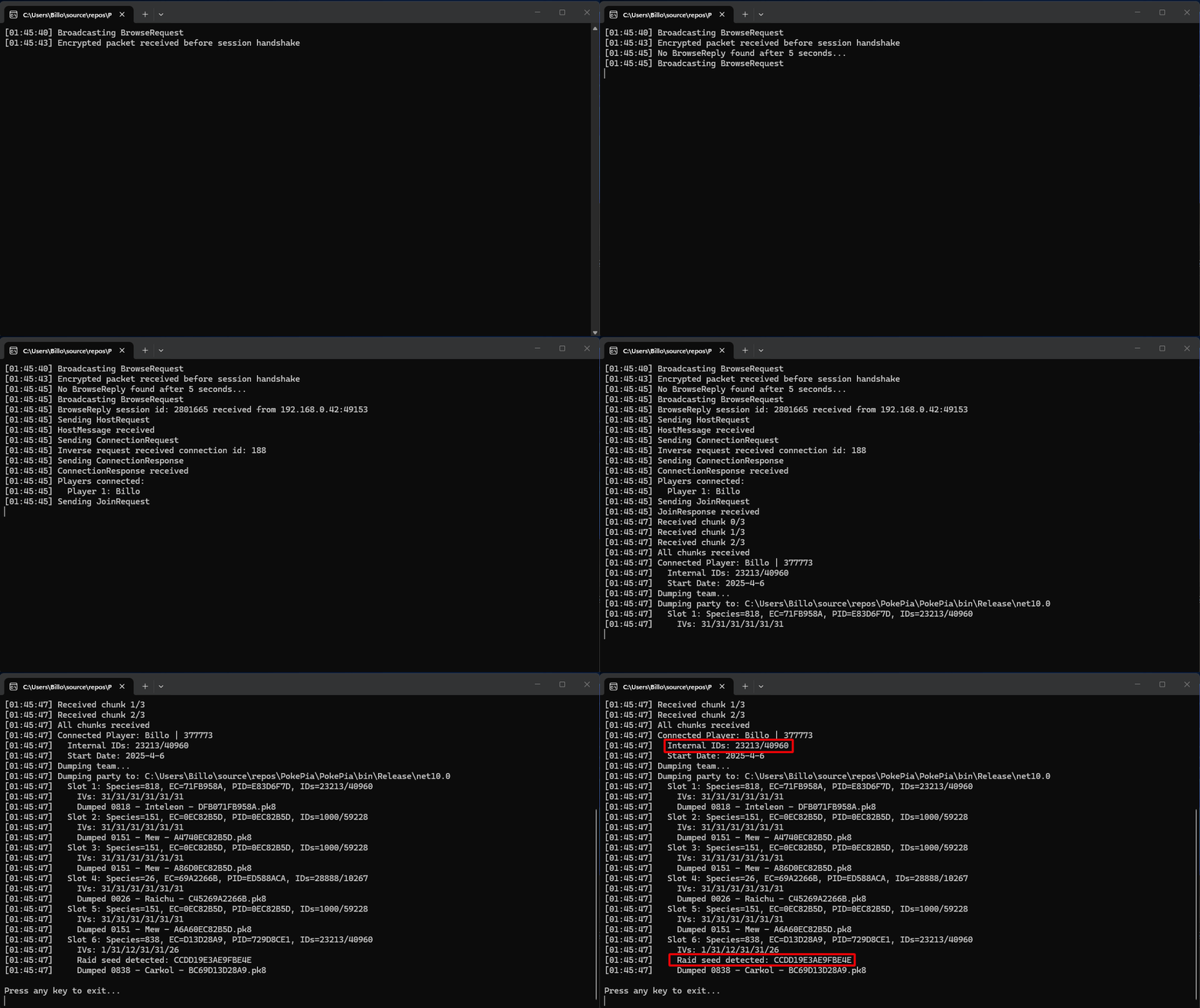
The above image demonstrates what the PokePiaSWSH interface looks like when after it has connected to your console. We can see the details of our save file, most notably the internal Trainer ID and Secret ID (surrounded by the top red box).
Pokémon from Max Raids will also display a Raid Seed, this can be quickly copied out and pasted into PokeFinder if you are dumping your Pokémon for the purposes of Raid RNG manipulation.
Important - If you are running into issues using PokePiaSWSH, you should first confirm that your console and PC are connected to the same Wi-Fi network. Including confirming that they are both connected to the same Wi-Fi band if you are using a multi band router.
If you are still running into issues after double checking the connection, seek support in the Discord server linked at the top of this page or use the SysBot.NET method below.Figure 2 - Adding Your Profile (PokePiaSWSH)
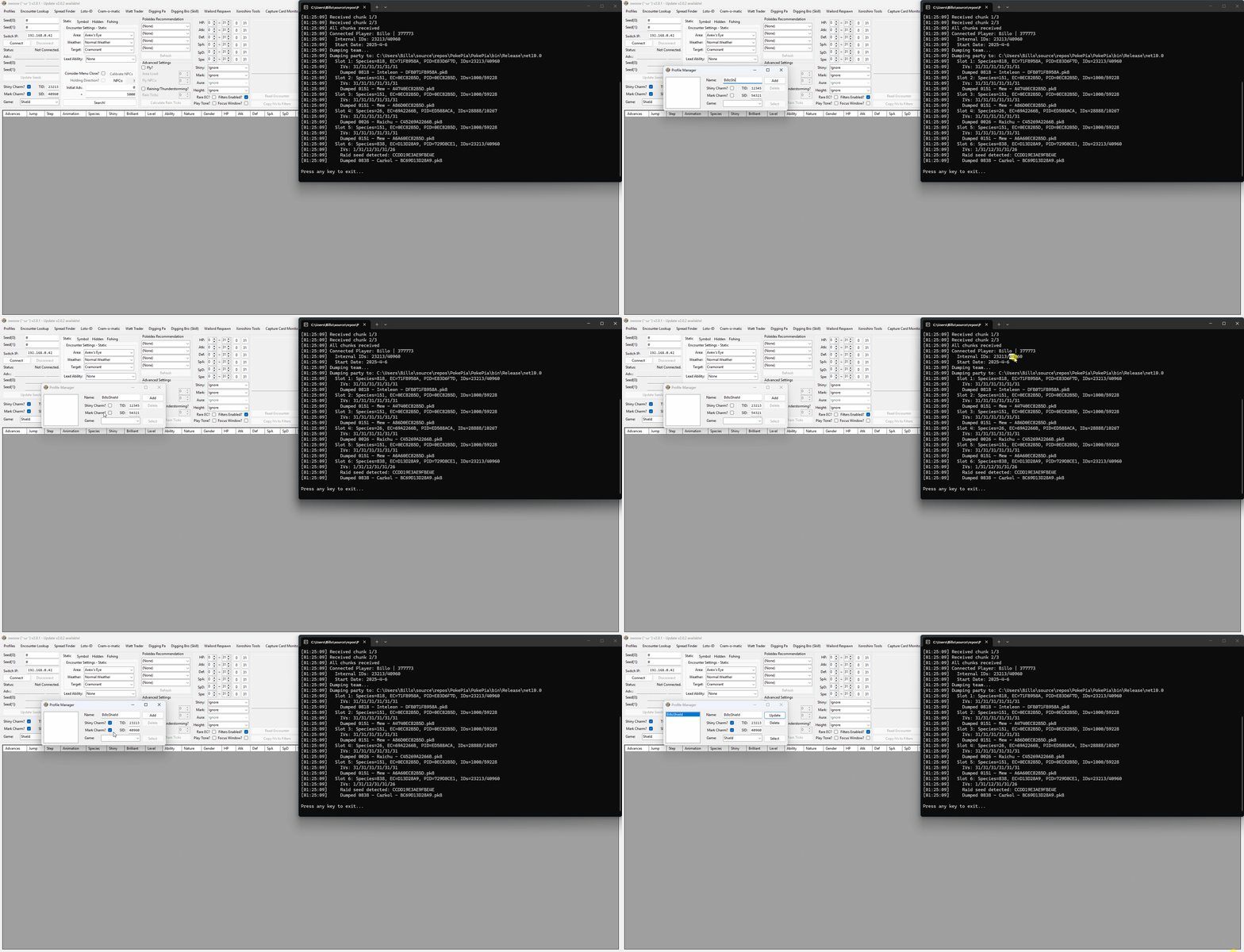
The above image illustrates the process using owoow but the following information is applicable for both owoow and PokeFinder.
- Open the
Profilessubwindow and give your profile a name that you can easily recognize. - Enter the 5 digit IDs given by PokePiaSWSH into the
TID&SIDfields, then select theShiny Charm&Mark Charmcheckboxes if those items are present in your save file. - Select your game version. Confirm that all of the information entered is correct. Incorrect information will cause inaccuracies when searching for targets.
- Click the
Addbutton to save your profile, then click theSelectbutton to apply the details to the main window. - Repeat this process if you have multiple profiles you wish to add to the list. Swapping profiles is as easy as selecting your chosen profile in the list on the left and clicking the
Selectbutton again.
Send me back to the Overworld RNG! Send me back to the Raid RNG!
Using SysBot.NET
As mentioned above, for this method you will need to have found a SysBot that is running Sword & Shield. This method will obviously not work if you are using a bot that is running any other game.
If you run into issues following this guide you will need to consult the bot host for extra support as it is likely they are using a bot with extra modifications, such as using a different command prefix.
Requirements
- PKHeX
- Nintendo Switch Online Subscription
- A Discord account (for SysBot.NET)
Instructions
- Extract the contents of the PKHeX download into an empty folder in a known location on your PC.
- Click
Optionsat the top of the window, then clickSettings. Change the Blank Save Version to Sword or Shield. Close this window. - Use a SysBot to dump the
.pk8file of any Pokémon caught in the save file you wish to find the TID/SID for. - Typically, the command used to dump a Pokémon file is
$dump, but the prefix (in this case$) may vary depending on the bot configuration. Ask the bot host for more information. - Drag the file into the PKHeX window. You should now see the details on screen. Head over to the
OT/Misctab to view Trainer Information. - Hover over the TID field with your mouse. This will reveal the 5 digit TID/SID combination. Take note of these values, as you will need them for any RNG manipulation involving shiny Pokémon.
Figure 1 - TID/SID PKHeX Lookup
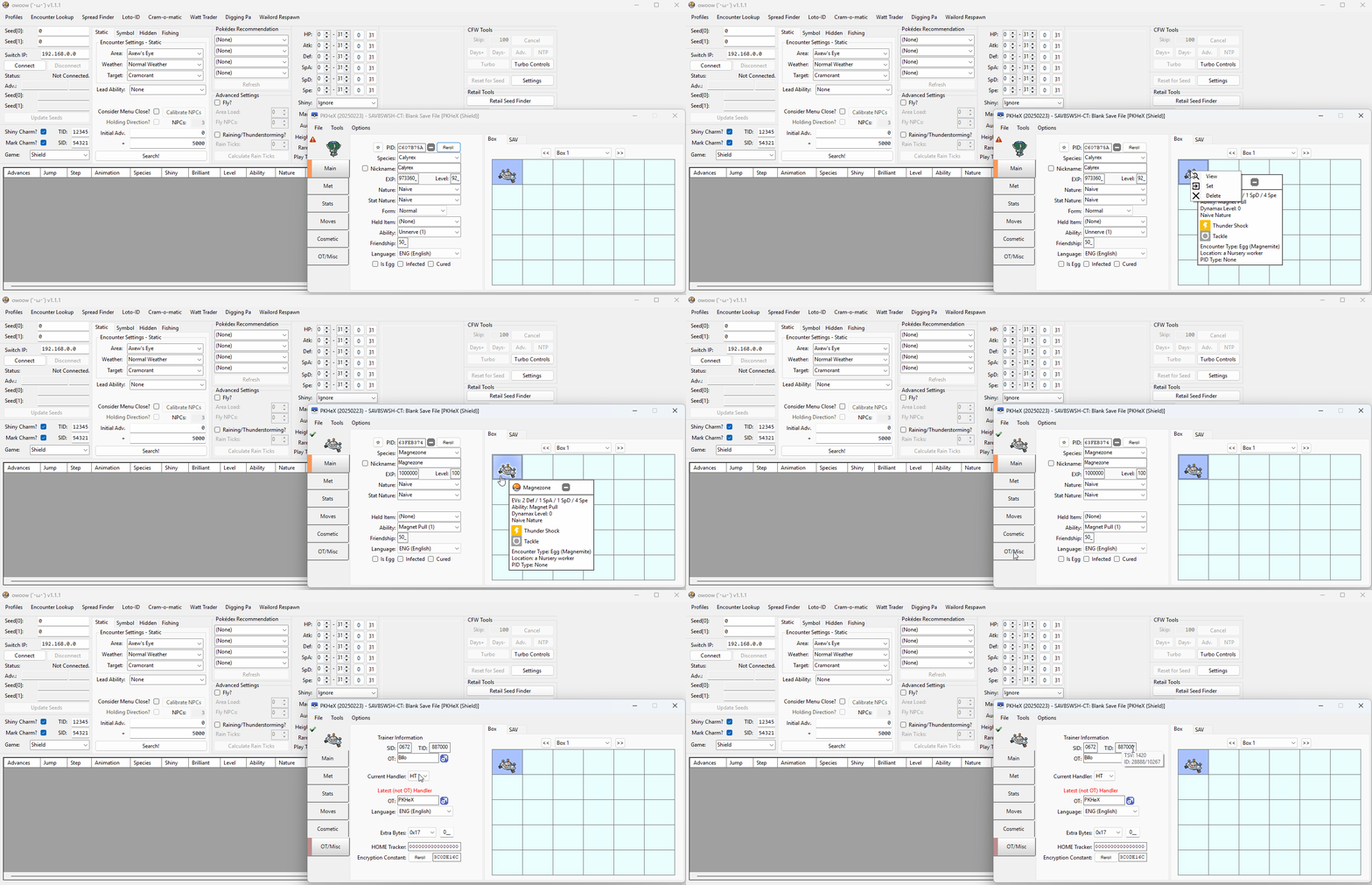
In this example we can see that the TID/SID combination is 28888/10267. We can now enter these values into owoow's or PokeFinder's Profiles subwindow for future use.
Figure 2 - Adding Your Profile (SysBot.NET)
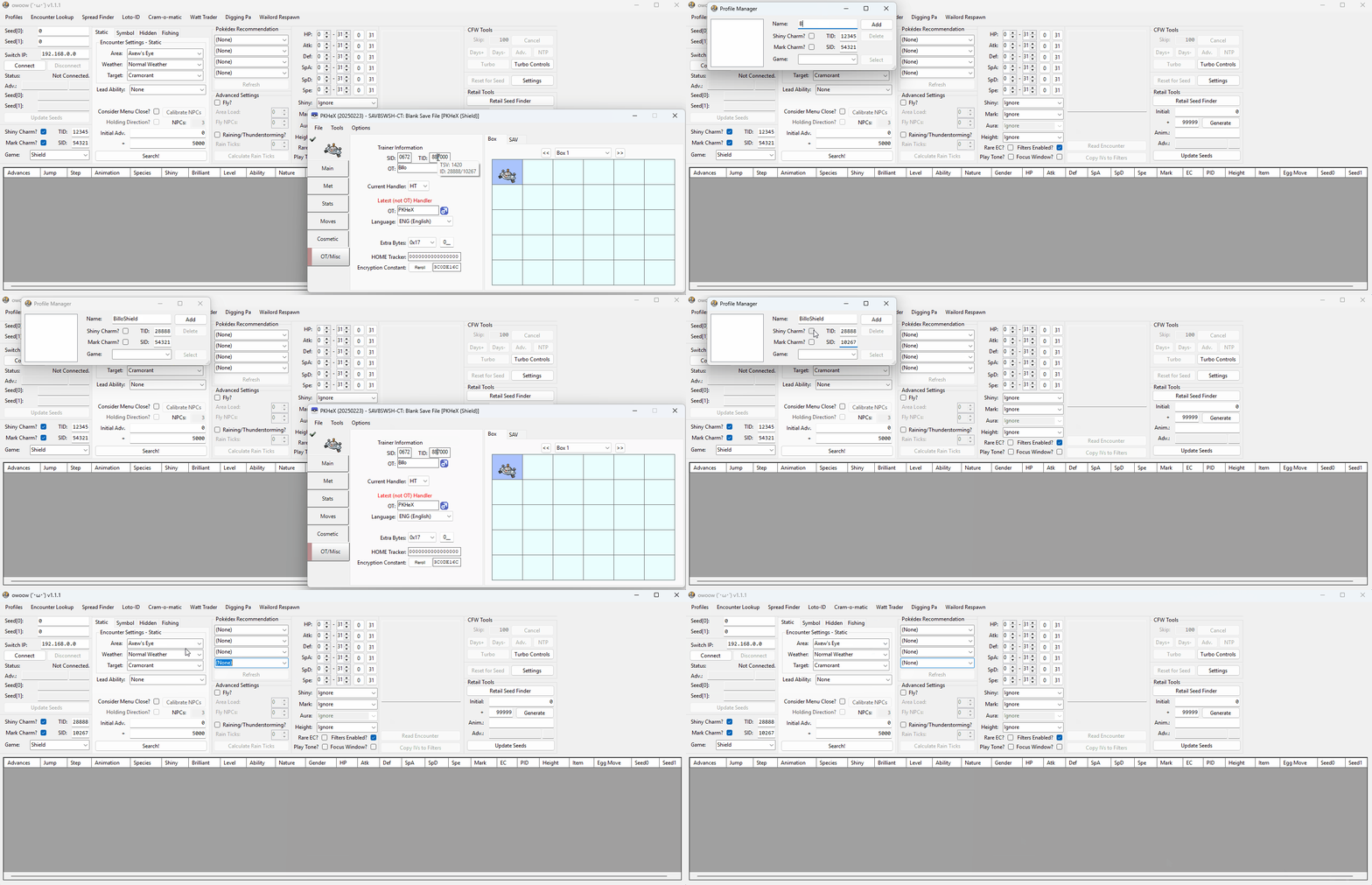
The above image illustrates the process using owoow but the following information is applicable for both owoow and PokeFinder.
- Open the
Profilessubwindow and give your profile a name that you can easily recognize. - Enter the IDs given by PKHeX into the
TID&SIDfields, then select theShiny Charm&Mark Charmcheckboxes if those items are present in your save file. - Select your game version. Confirm that all of the information entered is correct. Incorrect information will cause inaccuracies when searching for targets.
- Click the
Addbutton to save your profile, then click theSelectbutton to apply the details to the main window. - Repeat this process if you have multiple profiles you wish to add to the list. Swapping profiles is as easy as selecting your chosen profile in the list on the left and clicking the
Selectbutton again.
Send me back to the Overworld RNG! Send me back to the Raid RNG!