Capture Card Seed Finding
This page contains information about finding and monitoring your current seed, specifically using owoow's capture card monitor. If you have reached this page you should already understand the basics of finding your seed, such as how to identify the different attack animation types and the difference between the summary screen and party list.
In the wrong place? click here to go back!Applications
Installation Instructions
- Download
Microsoft Visual C++ Redistributableand run the setup wizard until complete, restarting your system when prompted. This is an additional required program dependency that is only required if you are using the Capture Card Monitor.
Figure 1 - Capture Card Monitor Overview
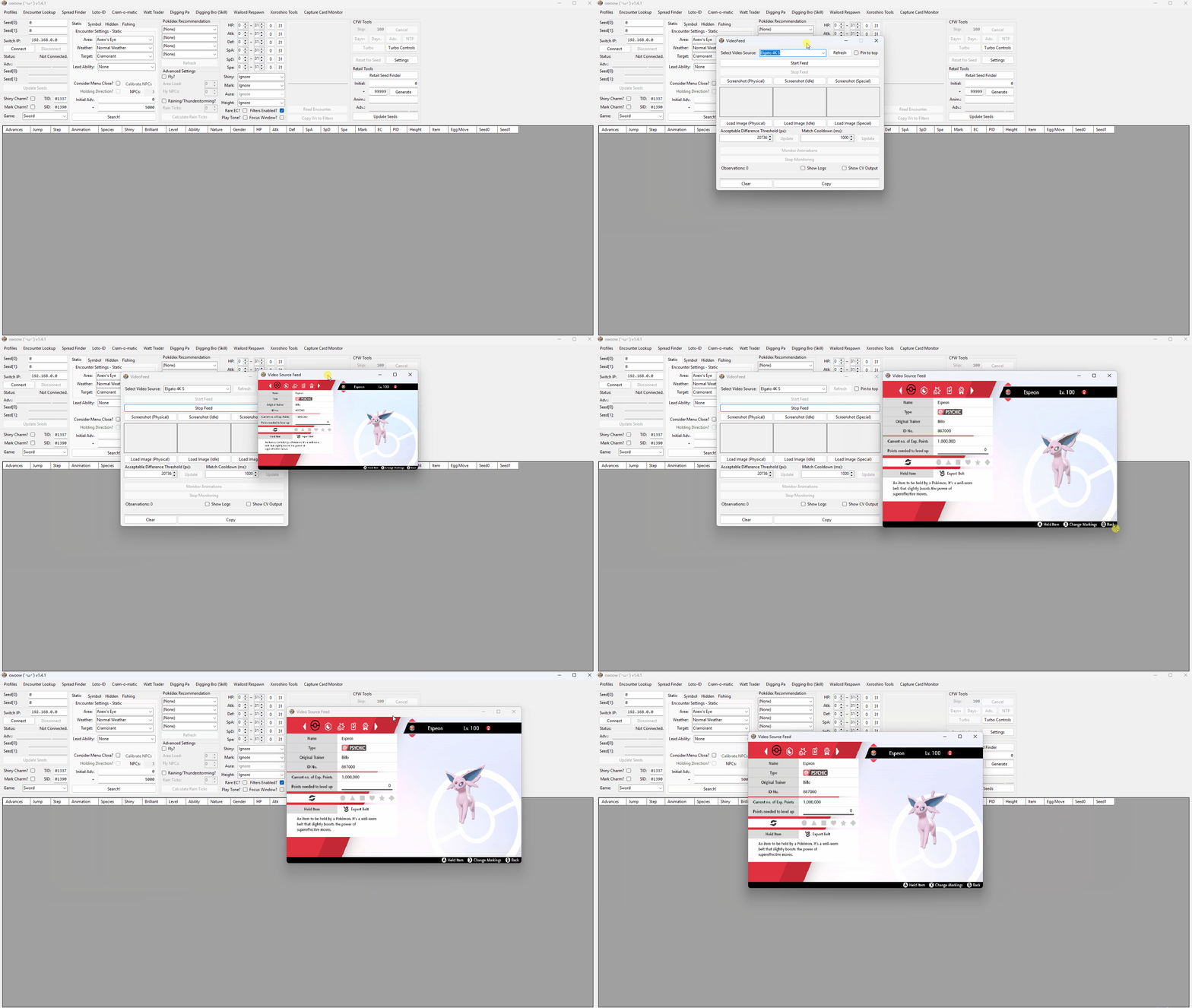
In the tab bar at the top of the main window, locate the button for the Capture Card Monitor and click it to open a subwindow. Once you open the subwindow you should see something similar to what is displayed in Figure 1.
General Feature Details
- Select Video Source is where you choose the input source for the capture card. In the above example our video source is an Elgato 4K S.
- If you plug in a new capture card you may need to hit the
Refreshbutton for it to be recognized by owoow. - The
Start Feedbutton allow owoow to grab the video output from your capture card and display it on screen. - Similarly, the
Stop Feedbutton will stop the video capture output and remove it from the screen. - The
Pin to topcheckbox will force the capture output to be at the front of any window. - This feature is useful when clicking around the main window while also wanting to monitor your video output, can be disabled by unchecking the box.
- The three
Screenshotbuttons allow the program to take a screenshot of your current game state and save the images to your computer (more detail below). - The three
Load Imagebuttons allow you to load an existing image into the program, useful if you have already used it once before. Acceptable Difference ThresholdandMatch Cooldownare used to fine-tune the sensitivity of the capture card monitor.Monitor Animationstells the program to monitor the video source and take note of any detected animation. Conversely,Stop Monitoringends the monitoring process.Show LogsandShow CV outputare used for advanced troubleshooting. Helps the user to see exactly what is going wrong.
About "Acceptable Difference Threshold" & "Match Cooldown"
Acceptable Difference Threshold is the maximum number of pixels that can be different between two images being compared in order for it to register as a match. The default is 20736, which is 1% of the switch's standard output resolution, meaning that the images must be a 99% match to be accepted. Due to larger Pokémon having more pixels and smaller Pokémon having less, this value may need to be tweaked up or down respectively to get your matches to properly record.
Match Cooldown is the minimum number of milliseconds that must have passed since the last accepted match before another one can be accepted. This is used to prevent multiple observations being recorded for a single attack animation, and may need to be lowered or raised if your Pokémon has particularly fast or slow animations respectively.
Figure 2 - Gathering Screenshots
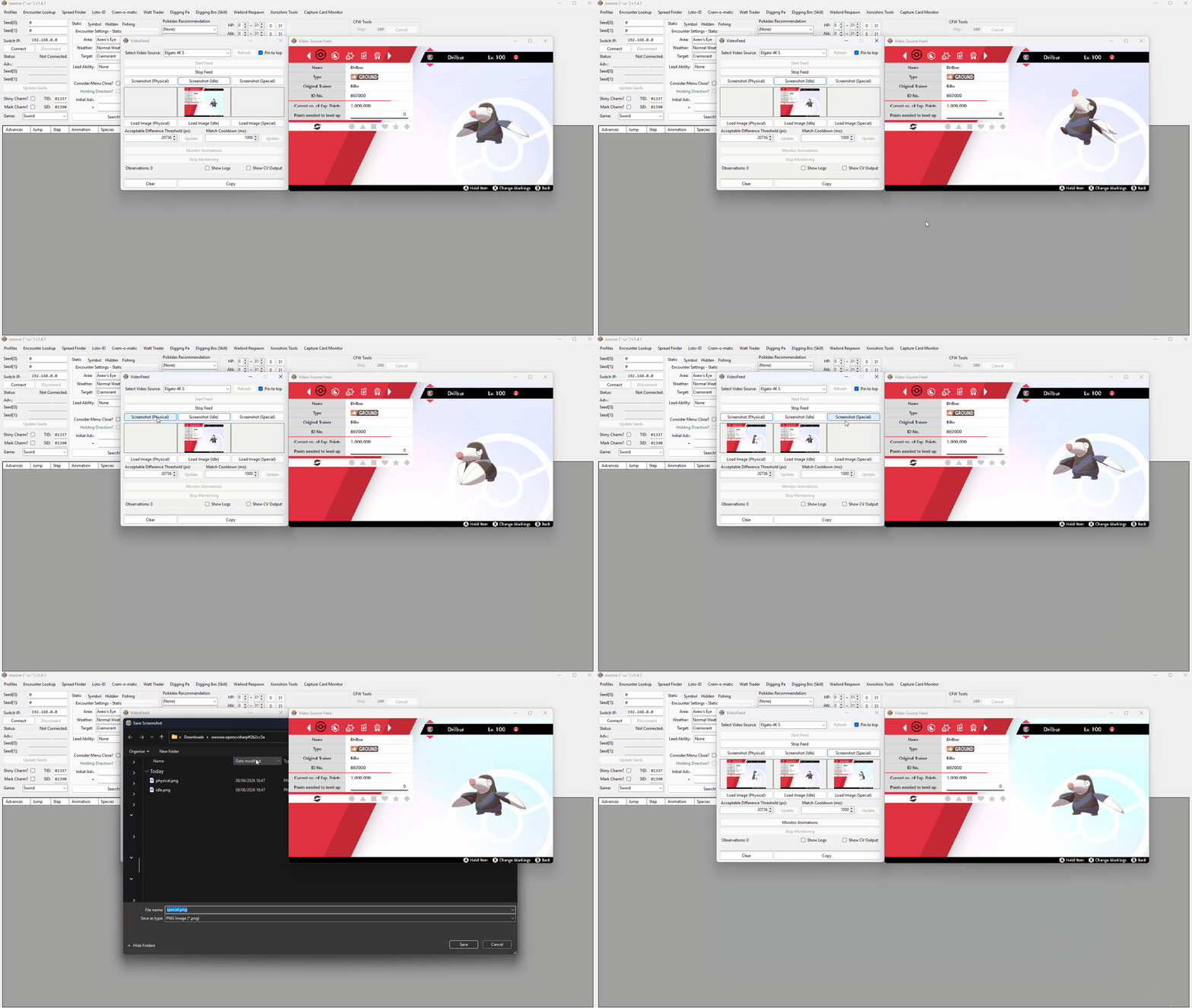
Before doing anything else you will need to gather three screenshots of your game state. These screenshots will be used as reference images for the capture card monitor. We will need screenshots of your Pokémon's idle, physical and special animations.
The recommended Pokémon to use are Drilbur, Chewtle, or Blipbug. These three Pokémon are available before obtaining the first gym badge and are good candidates for the role. Other Pokémon can be used but this is more likely to result in needing to change the Acceptable Difference Threshold and/or Match Cooldown.
Step-by-step
- Open the Capture Card Monitor subwindow, select the video source, then click the
Start Feedbutton and wait for your feed to appear on screen. - Open the summary screen of the Pokémon you wish to use for seed monitoring, avoid using the party list as this can cause unwanted seed advances.
- For the idle animation, simply click the
Screenshot (Idle)button while on the summary screen, do not take this screenshot during an animation. - Click the Left/Right stick to cause your Pokémon to animate, then click the
Screenshot (Physical)button during your Pokémon's physical attack animation. - Click the Left/Right stick to cause your Pokémon to animate, then click the
Screenshot (Special)button during your Pokémon's special attack animation.
All three of the required screenshots should now be loaded into the VideoFeed subwindow, this means we can now begin recording animations using the Monitor Animations button.
Figure 3 - Monitoring Started
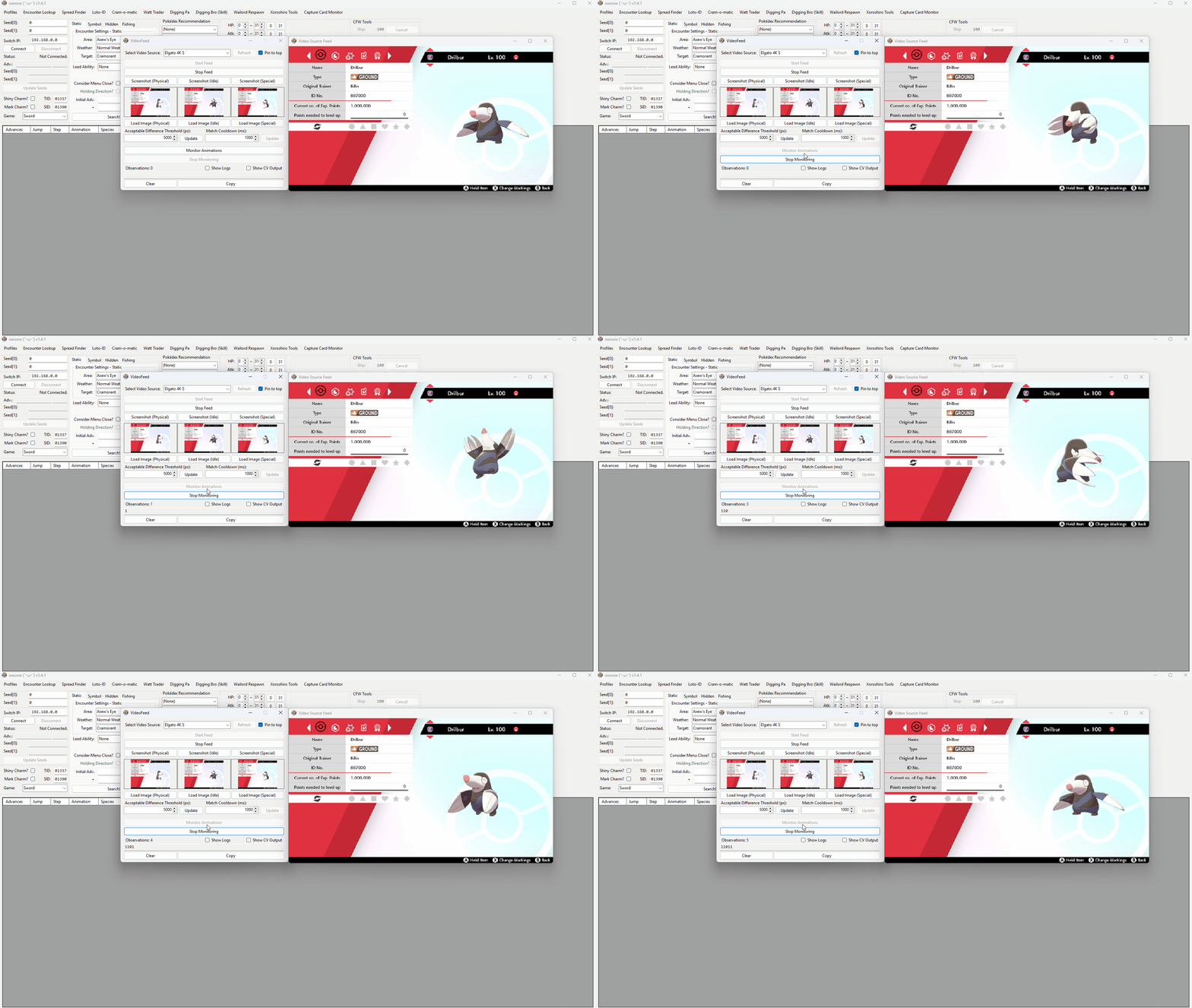
After confirming that your screenshots are correctly loaded, you can start monitoring animations using the Monitor Animations button. Clicking the Left/Right stick will cause your Pokémon to animate, and the program should correctly identify the animation type and output the result into the Observations section of the VideoFeed subwindow. Record a total of 128 animations for the best results.
Troubleshooting Tips:
Animations are being detected while my Pokémon is idle!
Take a better idle screenshot, adjust the Match Cooldown, or use a different Pokémon. This happens when your idle screenshot is too similar to one of the Pokémon's attack animations.
The program is registering multiple observations per animation!
Try increasing the Match Cooldown value, this will create a longer delay between each observation and prevent multiple detections of the same animation. If this does not work, consider adjusting the Acceptable Difference Threshold or trying a different Pokémon.
My animations are not recording correctly!
Try retaking the physical and special screenshots to more accurately reflect each animation. If this does not work, consider adjusting the Acceptable Difference Threshold and Match Cooldown values, or trying a different Pokémon.
It's wrong! It's all wrong! I've changed all the numbers and I still can't figure it out!
The default values (20736 for Acceptable Difference Threshold and 1000 ms for Match Cooldown) work well for most setups, though you may need to change them if you are experiencing issues. If you are still experiencing issues after changing them, revert to the defaults before attempting further troubleshooting.
I can't do this, I need a video or something to help figure out what I am doing wrong!
Lucky for you, Lego kindly uploaded a demonstration video of the entire process that can be found here! Follow the tutorial video and come back once you have a functional setup.
Figure 4 - Monitoring Complete
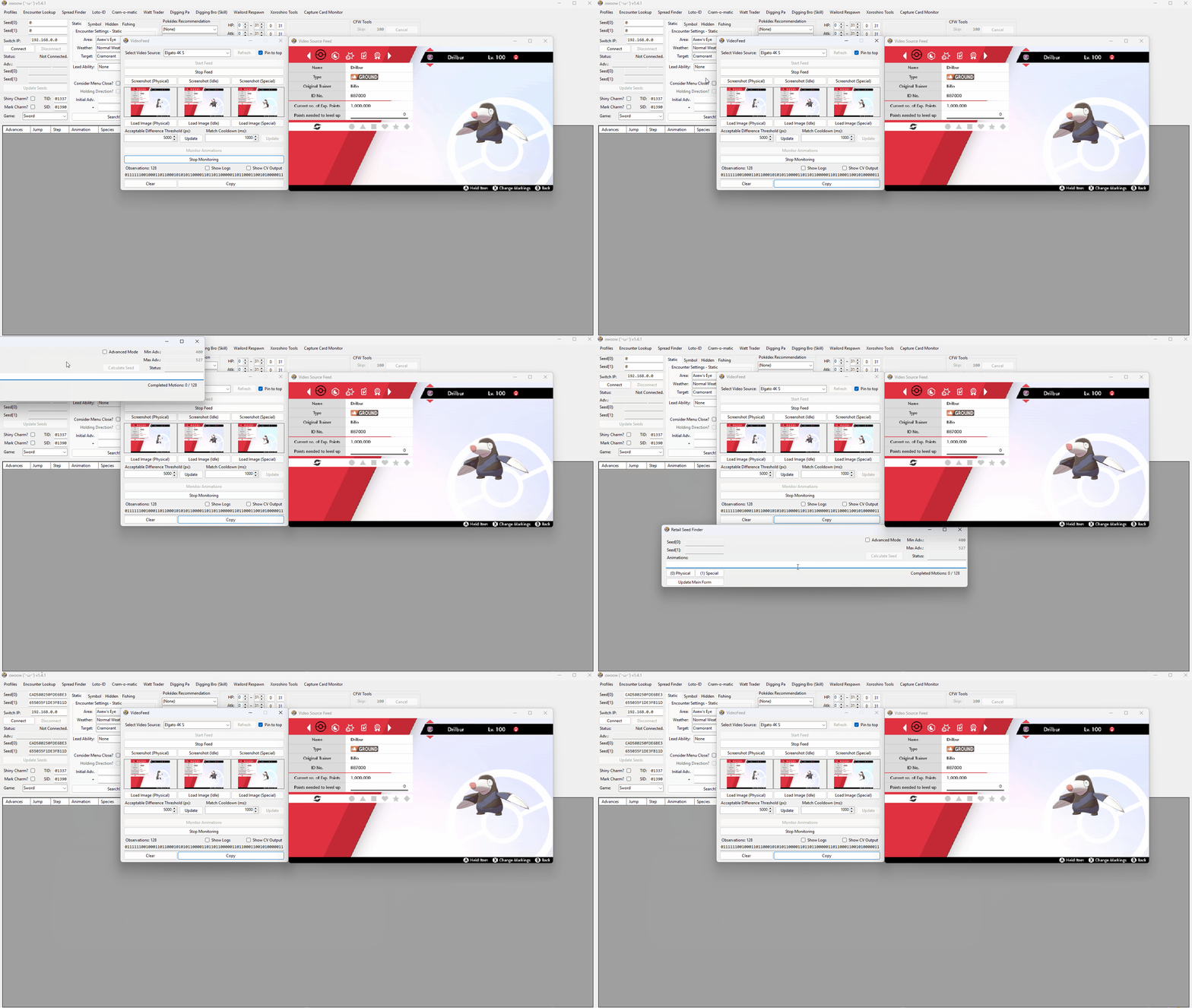
After you have successfully recorded up to 128 consecutive animations, you can click the Copy button to copy the animation pattern to your clipboard. You can then open the Retail Seed Finder sub-window and paste the output into it to find your seed.
If done correctly, a seed should be produced in the Retail Seed Finder subwindow, you can then click the Update Main Form button to paste your seed into the main window.
After finding your seed and updating the main window, you will want to confirm that the seed is correct. A single erroneous input can result in the wrong seed. This is best achieved using the following method:
- Click
Update Main Formafter identifying your seed using the Seed Finder to populate the seed fields on the main window. - With the
X Menustill open, set your search range (the+field) inside theEncounter Settingssection to a small number such as 20-50. Untick theFilters Enabled?checkbox and clickSearch!to perform a filterless search. - You will see that the next 20-50 search results have been produced. Now, look at the
Animationscolumn of the table. Keep in mind that0represents a physical animation and1represents special. - You should still be on the Pokémon summary screen or the party list after identifying your seed. Perform some extra animations to confirm that the upcoming attack animations align with the next few results in the table.
- Once you have confirmed that the animation pattern in the table properly matches, go back to the
Retail Toolssection. - You will now learn to reidentify your seed at any point. You may use this labeled image to orient yourself.
- First, enter the rough number of advances that have occurred into the
+field. This should be at least as many attack animations you did, plus some extra leeway. - Click the
Generatebutton, which will generate as far as you entered in the+field. - Begin recording animations in the
Anim.:box underneath. It typically takes around 5-25 animations to find your seed. - Every time you want to find your current seed, you must set the
+field to cover how much you have advanced and click theGeneratebutton. If you are unable to reidentify your seed, you can increase the+field field andGenerateagain.
Head back to the Main Page (OVERWORLD) Head back to the Main Page (ITEM)